Delivery Admin
Login to www.deliveree.co.za.
On the top left, Open the "Menu" and then select “Deliveries”
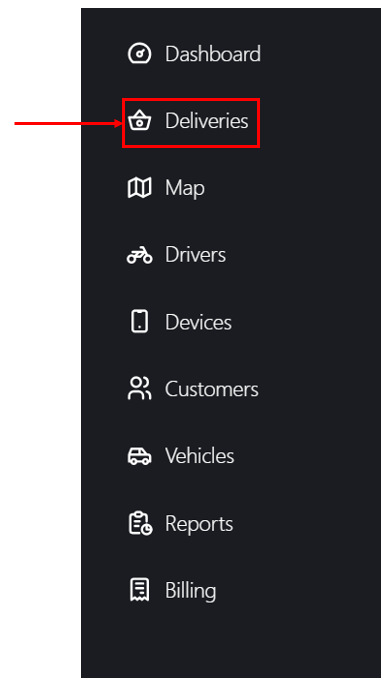
As delivery orders are placed, they appear in the Admin portal. As an order changes state, it moves across the tabs from “New” to “Assigned” to “In Enroute” to “Delivered”.
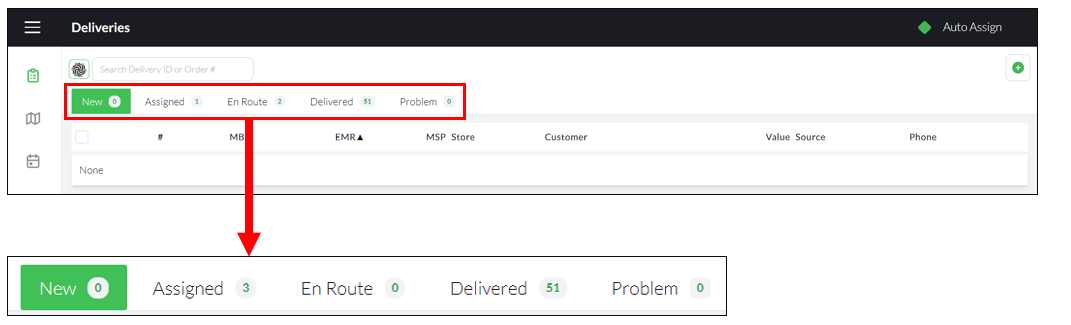
Selecting any of these tabs will show the orders in each of their delivery State.
"New" = An order was just placed.

In the New orders tab, you will see the following labels:
# = order number
MDB = minutes before due
EMR = Estimated minutes remaining
MSP = minutes since placed
Store = name of the store
Customer = name of the customer who placed the order
Value = value of the order
Source = shows how the customer ordered
Phone = the customer's phone number

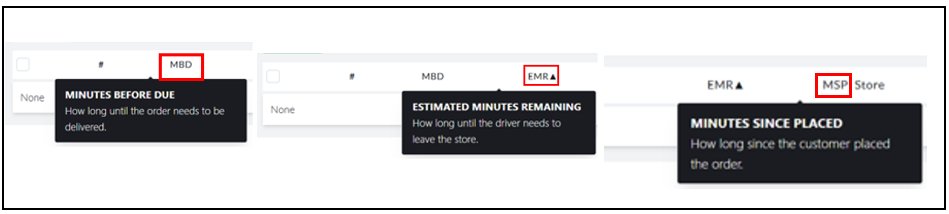
By placing the mouse pointer on each item a definition will appear:
There are various indicators in each tab showing real-time, relevant information, for example:
1. MBD - number of minutes before the order needs to be delivered,
2. EMR- The time the driver has left at the store before he must leave, taking travel time into consideration, to deliver on time.
3. MSP- This indicates how long ago the client placed the order.
To see the details of the new order, click  on the right side of the order.

Order details will be shown like this:
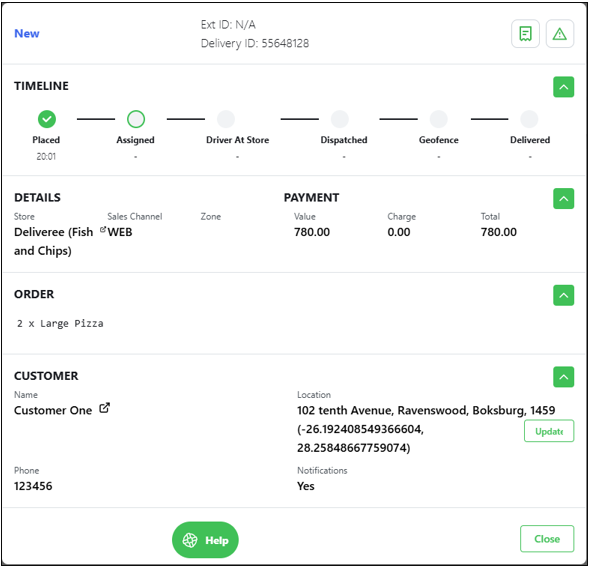
At the top, you will see:
The order status, in this case its a "New" order.
The Delivery ID: This is from Deliveree
The External ID: Where AURA/Yumbi integration applies
Order Number: This will match the number sequence on the AURA POS.

Next you will see if the order has been "Assigned", if the “Driver is at store" to pick up the order, if the order has been “Dispatched”, it the driver has reached the "Geofence" or if the order has been "delivered".

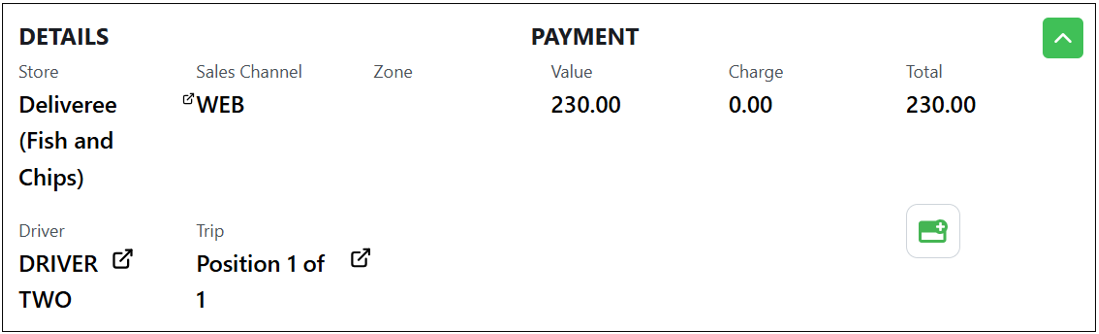
You will also see the store details and the driver who took the order and if the order was part of a group, you will see the position it was in the trip and if the order was paid it will show that the order was paid and the method of payment used.
Delivery details will be displayed, showing what the customer ordered.

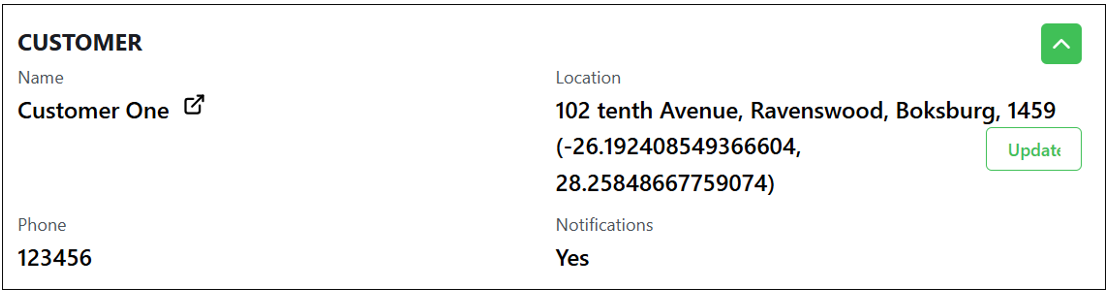
The customer’s details will be displayed as illustrated below, including the customer’s phone number and address. The address must always include the GPS coordinates.
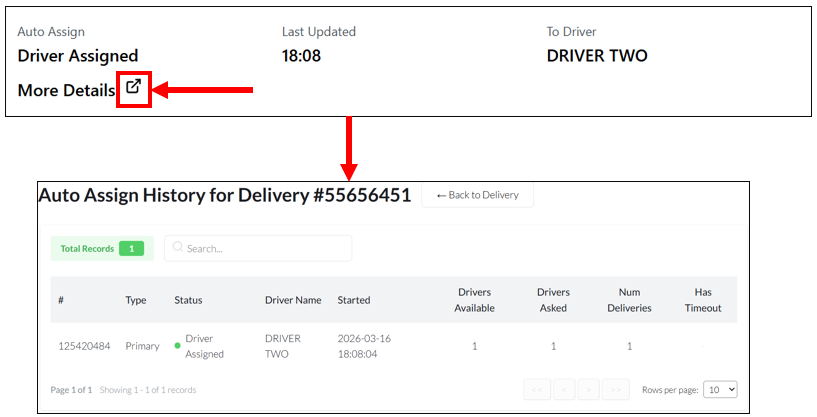
When you click the " show more details" button, you will display the Auto assign History for the order as illustrated below.
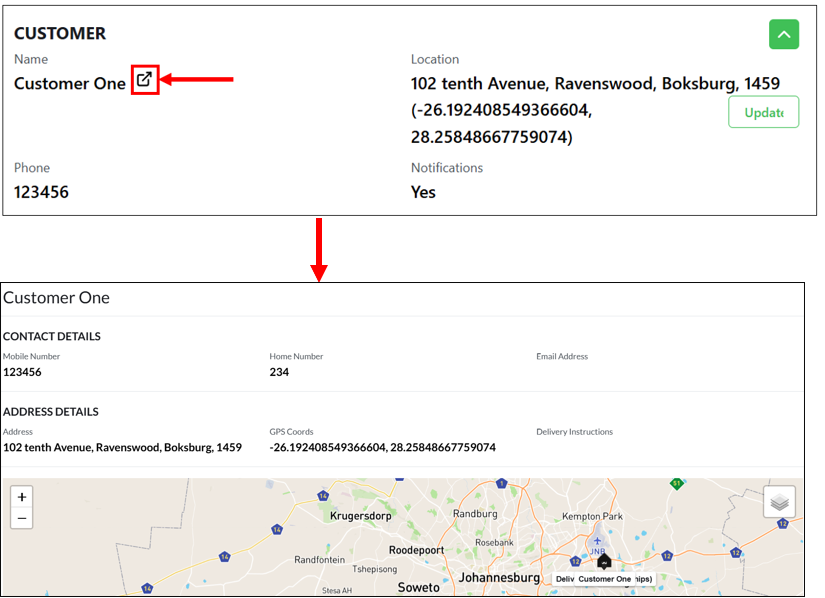
Below are the customer’s details that will be displayed when you select the “Show More Details” button, including the customer's address, GPS information, and a view showing how far they are from the store.
The order will continue to follow the delivery pipeline from "assigned" to "enroute". When the driver selects “Leave” on the Deliveree Driver App, the status will change to “en-route”.
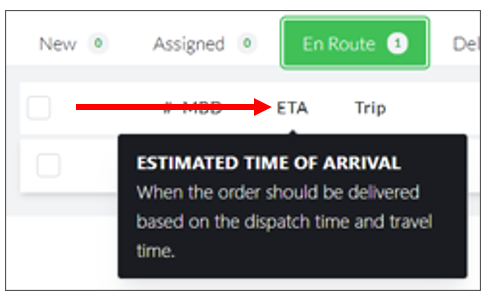
"En Route"= The driver has left the store and is on the way to the customer.

Here you will notice the abbreviation ETA (Estimated time of arrival).
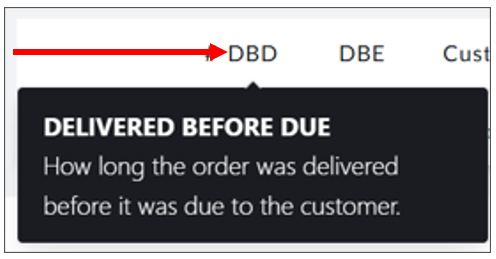
"Delivered" = The Driver has marked the order as delivered.

Here you will see DBD (Delivered before due)
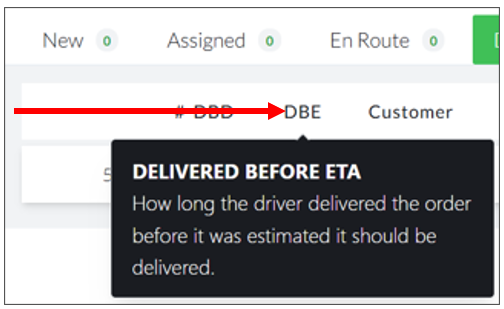
You will also see DBE (Delivered before ETA)
"Problem"= Any orders that have not been delivered – such as being unable to locate a customer, or a hoax order will appear in the Problems tab.

For any further training on using the Delivery Admin portal, please email support@deliverytribe.co.za
Attached is the user guide for these steps. Please think of the planet before printing.
Learning Material Feedback Form
We would love to hear your thoughts and suggestions so that we can improve our training material. Please follow the link and provide us with feedback:
https://form.jotform.com/210180530919551